
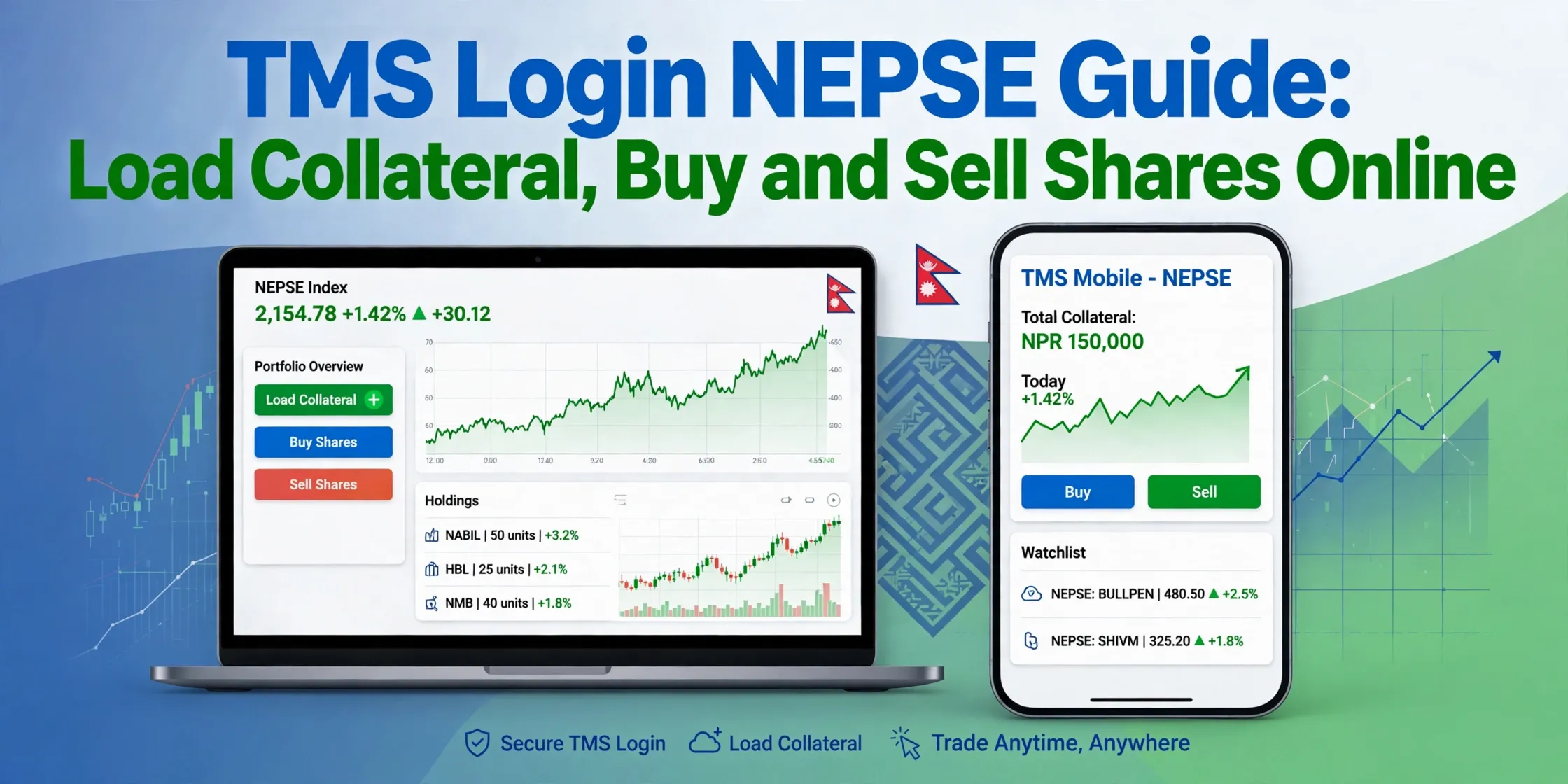
This NEPSE TMS login guide explains how to open your broker's trading portal, load collateral, place a buy or sell order, and transfer sold shares through MeroShare EDIS. Use only your broker's official TMS address, confirm all order details before submitting, and follow the current settlement instructions shown by NEPSE, CDSC, and your broker.
TMS is for placing trades; MeroShare is used to view your Demat holdings and complete share-transfer steps. If you have not opened a broker account yet, start with our NEPSE TMS account opening guide.
What Is TMS in NEPSE?
TMS stands for Trade Management System. Your stockbroker provides access to its trading platform, where you can place orders, review order and trade records, and manage collateral.
| Platform or account | Main use |
|---|---|
| TMS | Place buy and sell orders, view orders and trades, and check collateral or buying limits. |
| MeroShare | View Demat holdings, check purchase-source details, and submit share transfers through EDIS. |
| Broker account | Complete client onboarding, KYC, ledger, contract notes, and broker support. |
| Demat account | Hold your securities under your BOID through a depository participant. |
You generally need an active broker account, a Demat account, and the linked details your broker requires before you can trade. For account-opening requirements, see how to open a NEPSE broker account.
Find Your Broker's TMS Login
Each broker may use a different TMS address. Get the correct URL from:
- The welcome email or SMS sent by your broker.
- The broker's official website and its TMS Login or Client Login link.
- The broker's verified customer-support desk.
Before entering your password, confirm the portal belongs to your broker and the broker number is correct. Do not rely on a URL pattern or a login link forwarded by an unknown person on social media, messaging apps, or email.
How to Log In to TMS
- Open the TMS address published by your broker.
- Enter your client code or username.
- Enter your password and the captcha shown on the page.
- Enter a one-time password (OTP) if the system requests one.
- Confirm that the client name or code on the dashboard matches your account.
- If this is your first login, change the temporary password and store the new one securely.
Never share your password, OTP, PIN, or client credentials with anyone claiming they need them to help you trade.
Load Collateral in TMS
Collateral is funds placed with your broker to support purchases. Your available buying limit depends on the balance and rules applied by your broker; check the amount shown in your own account before placing an order.
### Steps to load collateral
- Log in to TMS.
- Open Fund Management.
- Select Collateral Management.
- Choose Load Collateral.
- Select one of the payment methods available through your broker.
- Enter the amount and any required remarks.
- Review the details, confirm the transaction, and complete OTP approval if requested.
- Return to TMS and check that the collateral balance or buying limit has updated.
Payment options vary by broker. Some may support connectIPS or a direct bank channel; others may show different options. Use only the payment choices displayed in your broker's official TMS, and contact the broker if a payment is debited but not reflected.
### Collateral checklist
- Allow enough time for the funds to appear before placing an order.
- Keep room for applicable transaction costs as well as the share amount.
- Verify the recipient and payment details before confirming a transfer.
- Save the payment confirmation and contact your broker if the balance does not update.
How to Buy Shares in TMS
- Log in during the trading session shown by NEPSE.
- Open Order Management and choose the buy/sell order screen.
- Select Buy and search for the company's trading symbol.
- Enter the quantity and your limit price—the maximum price per share you are willing to pay.
- Review the order value, available buying limit, and all order details.
- Submit the order and check its status in the order book.
An order may be filled fully, partially, or not at all. It enters the order book and matches only when compatible orders are available. For example, a buy limit of Rs. 500 can match with a seller offering at Rs. 500 or less, subject to the live market and applicable rules. Never submit an order above your available buying limit or at a price you are not willing to pay.
How to Sell Shares in TMS
Before placing a sell order, confirm the shares are available in the correct Demat account. Your broker's display and MeroShare holdings may not update at precisely the same time; check both and ask your broker if they do not agree.
- Check your holdings in MeroShare.
- Log in to your broker's TMS.
- Open Order Management and select Sell.
- Search for the company's trading symbol.
- Enter a quantity no greater than the shares available to sell.
- Enter your limit price—the minimum price per share you are willing to accept.
- Review and submit the order, then monitor its status.
- After it executes, complete the share transfer through MeroShare within the deadline shown by your broker or the settlement system.
A sell order can remain unmatched if its limit price is above the available buy offers. Do not assume a submitted order has executed; check the trade book or order status.
Complete EDIS Transfer in MeroShare
After a sale executes, follow the current instructions in MeroShare to deliver the shares to your broker:
- Sign in to the official MeroShare portal.
- Open My Purchase Source and confirm the purchase date and source for the sold shares, if needed.
- Open My EDIS or the share-transfer option shown in your account.
- Select the sold security and the quantity that matches your trade.
- Review the details and submit the transfer using your MeroShare PIN or other requested confirmation.
- Check the transfer status and retain the confirmation.
Complete the transfer before the deadline shown for your transaction. Correct purchase-source details can also be relevant to the weighted average cost (WACC) used in capital-gains calculations. If a sale or transfer is missing or incorrect, contact your broker or Depository Participant through verified channels.
Buy Orders vs Sell Orders
| Feature | Buy order | Sell order |
|---|---|---|
| What you need | Available buying limit or collateral under your broker's rules. | Shares available to sell in your Demat account. |
| Limit price means | The highest price you are willing to pay. | The lowest price you are willing to accept. |
| After execution | Shares are credited through the settlement process. | Shares must be delivered through the prescribed transfer process. |
| Common risk | Paying more than intended or tying up collateral in an open order. | Selling at an unacceptable price or missing a delivery deadline. |
TMS order options and validity settings can vary. Many orders are limit orders and remain open only for the validity period selected. Read the order form and broker guidance before placing or modifying an order.
NEPSE Trading Hours and Settlement
NEPSE's regular market session is commonly listed as 11:00 AM to 3:00 PM on trading days, but holidays, special sessions, or official notices can change the schedule. Check the latest NEPSE notices before planning a trade.
| Timing | Typical event |
|---|---|
| Trade day (T) | A buy or sell order is placed and may execute. |
| Settlement | Funds and securities are processed under the current settlement cycle and applicable instructions. |
| After settlement | Purchased shares appear in Demat and sale proceeds are handled through the broker, subject to charges and account status. |
Settlement is commonly described as T+2 working days, but schedules and deadlines can change. Confirm the current cycle and the exact payment or EDIS due date in your broker's instructions and the latest NEPSE/CDSC notices. Keep your contract notes and broker bills for your records.
Common TMS Problems and Fixes
| Problem | What to check |
|---|---|
| Cannot log in | Confirm the broker portal, client code, password, captcha, and OTP. Use the broker's password-recovery process if needed. |
| Collateral is not showing | Refresh the collateral page, check the transaction status, and contact your broker with the payment reference. |
| Buy order is blocked | Check available buying limit, quantity, price, and any broker or exchange order limits. |
| Sell order is blocked | Confirm the security and quantity are available in your Demat account and eligible to sell. |
| Order is not matching | Check the live order book and whether your limit price can match. Do not change the price unless you accept the new amount. |
| Order remains open | Check its validity and status in the order book; an unfilled order may expire according to its settings. |
| EDIS transfer is pending | Check MeroShare status and the deadline, then contact your broker or DP if the status does not update. |
Use your broker's verified support channels. Do not provide your password, OTP, or MeroShare PIN to support staff.
Safety Tips for TMS Users
- Use only the TMS portal linked from your broker's official website.
- Change any temporary password and use a unique password for your account.
- Never share your password, OTP, MeroShare PIN, or client code.
- Avoid placing trades over public Wi-Fi where possible, and lock your device when unattended.
- Confirm the broker, symbol, quantity, price, and order side before submitting.
- Save payment confirmations, contract notes, and share-transfer confirmations.
- Never place a sell order for more shares than you hold.
- Review current fees, deadlines, and exchange notices before trading.
TMS guides explain platform steps, not whether a security is a good investment. For a rough calculation of transaction results, use the NEPSE profit and loss calculator, and seek qualified advice for investment or tax decisions.
Frequently asked questions
What is TMS in NEPSE?
TMS means Trade Management System. It is the trading platform provided through your broker for placing buy and sell orders.
How do I log in to TMS NEPSE?
Open your broker's official TMS portal and enter your client code or username, password, captcha, and OTP if requested.
How do I load collateral in TMS?
Open Fund Management, choose Collateral Management and Load Collateral, select an available payment option, enter the amount, and confirm the transaction.
Can I buy shares without collateral in TMS?
A buy order generally needs available collateral or another trading limit approved by your broker. Check the buying power displayed in your own TMS account.
Why is my buy order not matching?
A buy order may remain unmatched if its limit price is below available sell offers, or if there are no matching orders. Only change the price if it remains within your plan and available buying limit.
Why can't I sell shares in TMS?
Confirm that the shares are available in your Demat account and that the quantity does not exceed your holdings. Check MeroShare and contact your broker if the records disagree.
What is EDIS in MeroShare?
EDIS is the electronic delivery instruction process used to transfer sold shares from your Demat account to your broker after a sale.
When do I receive shares after buying in TMS?
Shares are commonly credited around T+2 working days after a trade, but settlement timelines can change. Check the latest NEPSE, CDSC, and broker notices.
Try the free tools
Put this guide to work — every Solutions Nepal tool is free and needs no signup.